Skip to content
View in the app

A better way to browse. Learn more.

W3D Hub

A full-screen app on your home screen with push notifications, badges and more.

To install this app on iOS and iPadOS
  1. Tap the Share icon in Safari
  2. Scroll the menu and tap Add to Home Screen.
  3. Tap Add in the top-right corner.
To install this app on Android
  1. Tap the 3-dot menu (⋮) in the top-right corner of the browser.
  2. Tap Add to Home screen or Install app.
  3. Confirm by tapping Install.

Lunar V2 doesn't die properly

  • Assigned to: ChopBam
  • Version: 3.6.1.0
  • Fixed
  • Severity: Medium
  • Game Area: Vehicles

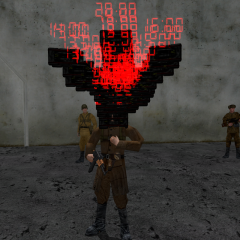
If the V2 dies in flight (i.e. shot to death before it can collide with something), a hedgehog spawns inside it and it freezes in place. The intent here was that it would cause the game to instantly recognise the rocket as having collided with something, causing it to instantly explode instead of crashlanding (a default feature of being a plane). Something must have changed recently in the crashlanding code that prevents this from working. This is a problem because the player flying the V2 is stuck in limbo until the hedgehog takes damage and disappears - which could happen immediately depending on what's attacking the V2, but it could also not and the player could end up stuck for a long time.

User Feedback

Recommended Comments

This has apparently been an issue since 3.5 release. I ended up removing the script and letting the thing fall to its natural death.

Join the conversation

You can post now and register later. If you have an account, sign in now to post with your account.
Note: Your post will require moderator approval before it will be visible.

Guest
Unfortunately, your content contains terms that we do not allow. Please edit your content to remove the highlighted words below.
Add a comment...

Account

Navigation

Search

Search

Configure browser push notifications

Chrome (Android)
  1. Tap the lock icon next to the address bar.
  2. Tap Permissions → Notifications.
  3. Adjust your preference.
Chrome (Desktop)
  1. Click the padlock icon in the address bar.
  2. Select Site settings.
  3. Find Notifications and adjust your preference.