Skip to content
View in the app

A better way to browse. Learn more.

W3D Hub

A full-screen app on your home screen with push notifications, badges and more.

To install this app on iOS and iPadOS
  1. Tap the Share icon in Safari
  2. Scroll the menu and tap Add to Home Screen.
  3. Tap Add in the top-right corner.
To install this app on Android
  1. Tap the 3-dot menu (⋮) in the top-right corner of the browser.
  2. Tap Add to Home screen or Install app.
  3. Confirm by tapping Install.

Pre Blog #108

Featured Replies

So yeah as you can most likely tell, we have shifted our blogs to every two weeks now due to everyone's lives being so busy at the moment and we just can't keep up with a weekly blog. And even though we have the content, it's not 100% ready atm so come back tomorrow afternoon and this will be all updated and the blog will be real good!


Sorry for the delay!

Ermm Wolf , why this is called a blog lol ?

Silence infidel!

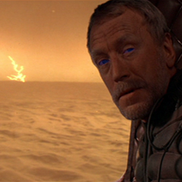
Mendoza "U will pay for your intrution infidels Ha-Ha-Ha-Ha-Hah"


Mendoza demolished Inferno

Mendoza was so awesome :3

Join the conversation

You can post now and register later. If you have an account, sign in now to post with your account.
Note: Your post will require moderator approval before it will be visible.

Guest
Unfortunately, your content contains terms that we do not allow. Please edit your content to remove the highlighted words below.
Reply to this topic...

Recently Browsing 0

  • No registered users viewing this page.

Account

Navigation

Search

Search

Configure browser push notifications

Chrome (Android)
  1. Tap the lock icon next to the address bar.
  2. Tap Permissions → Notifications.
  3. Adjust your preference.
Chrome (Desktop)
  1. Click the padlock icon in the address bar.
  2. Select Site settings.
  3. Find Notifications and adjust your preference.