


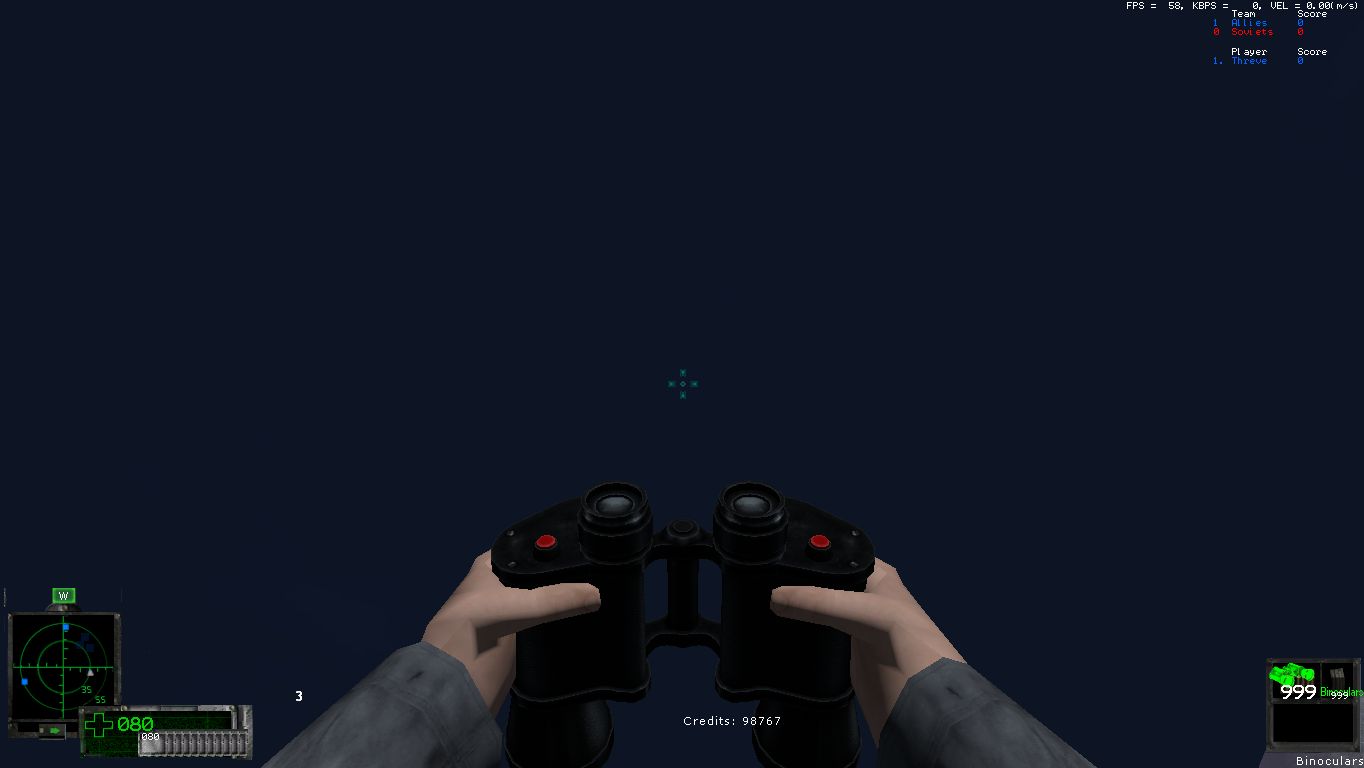
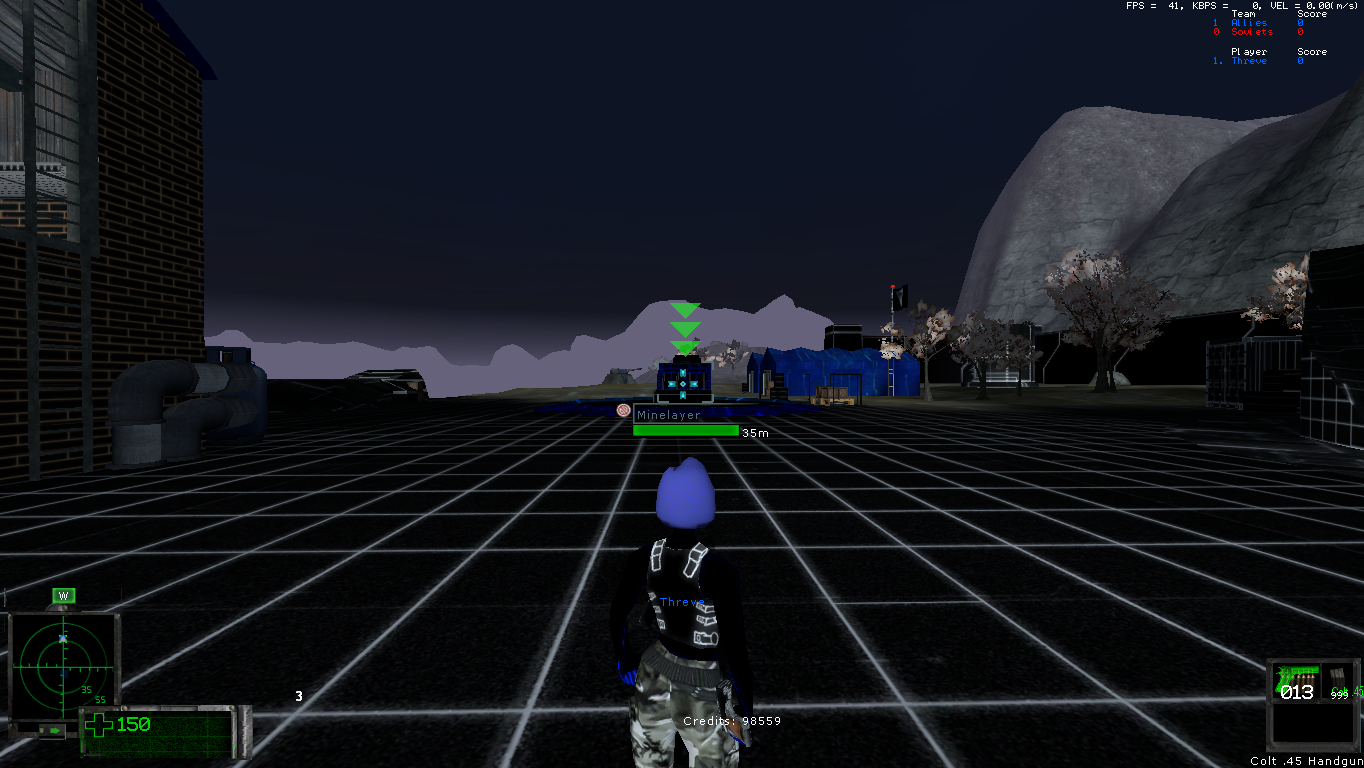
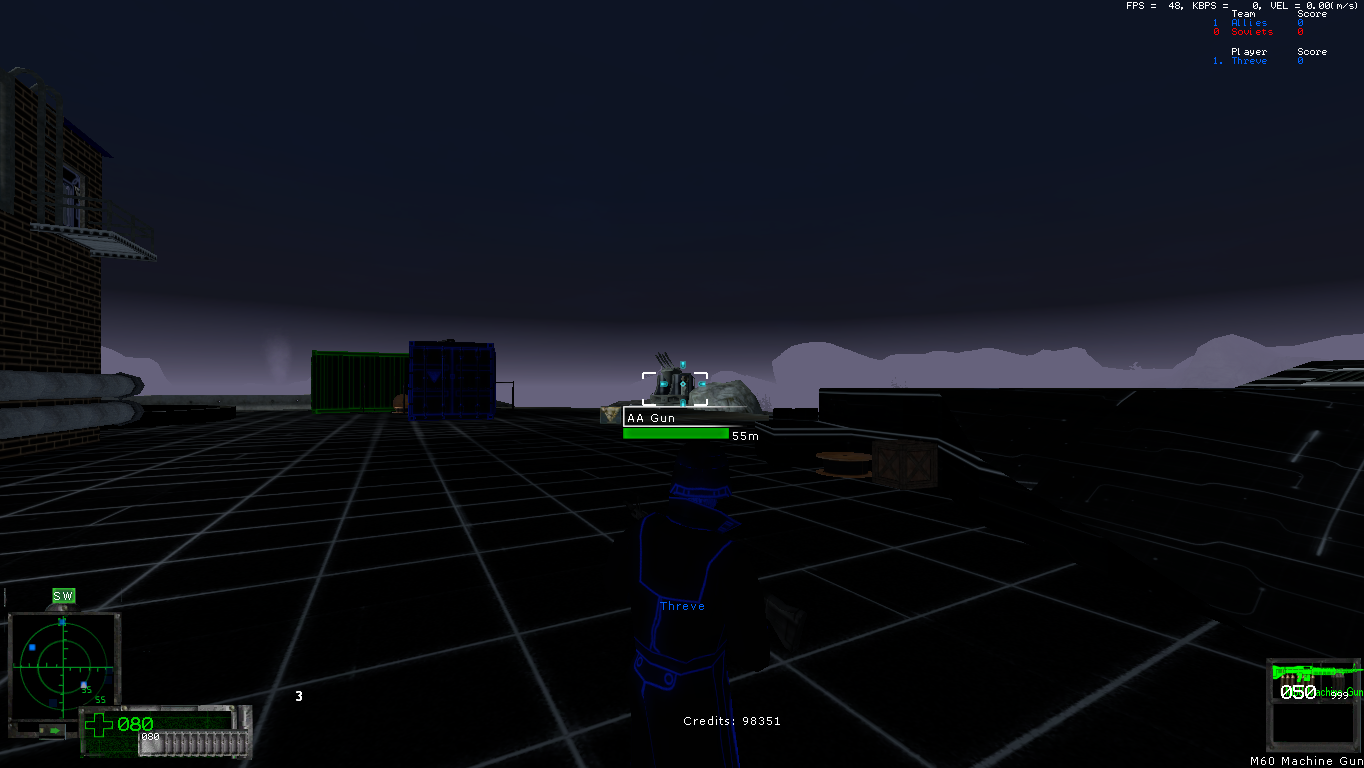
This file replaces your HUD layout into the days of A Path Beyond Beta. If you ever miss the old hud or want some memories from beta this is it.
For those of you who do not know, the radar is a lot more simplified which means if you take this game seriously do not install this hud as it does not show
- The star where the enemy base is
- The more smaller new layout detailed Icons
- Red boxes when you lock unto a target with the Rocket Launcher (Currently being tested to update)
However, it does show for the most part everything else except some more specialized details and is what I have been using all of Delta. I personally have not had a problem with it since.
I am still attempting to "Modernize" the HUD to Delta standards and will release when things are tested and updated. Hopefully, I can get it to a point where this HUD has the same functionality.
ALL credit goes to the original production team behind APB who developed the game and also the HUD. I have not modified the HUD except to include the mine count and distance of objects on radar. Enjoy!
What's New in Version 1.1.0
Released
*UPDATE*
Mine Count has now been updated and functional! It will appear above the credits and time as a number. The label however is still being worked on.
Missile Lock-on has also been tested and is now functional as well.
Installation instructions are included in download.
You may only provide a review once you have downloaded the file.
There are no reviews to display.