Skip to content
View in the app

A better way to browse. Learn more.

W3D Hub

A full-screen app on your home screen with push notifications, badges and more.

To install this app on iOS and iPadOS
  1. Tap the Share icon in Safari
  2. Scroll the menu and tap Add to Home Screen.
  3. Tap Add in the top-right corner.
To install this app on Android
  1. Tap the 3-dot menu (⋮) in the top-right corner of the browser.
  2. Tap Add to Home screen or Install app.
  3. Confirm by tapping Install.

URKA

Member
  • Joined

  • Last visited

Everything posted by URKA

  1. I think it was ok like it was. But ok. I know many new players asked about "why I can't play this game?". So is ok.
  2. FRAYDO told me I won. I was sure I wasn't going to win, so I didn't even wanted to look... I am surprised. Thanks for giving me the 3rd place. I am greatfully impressed.
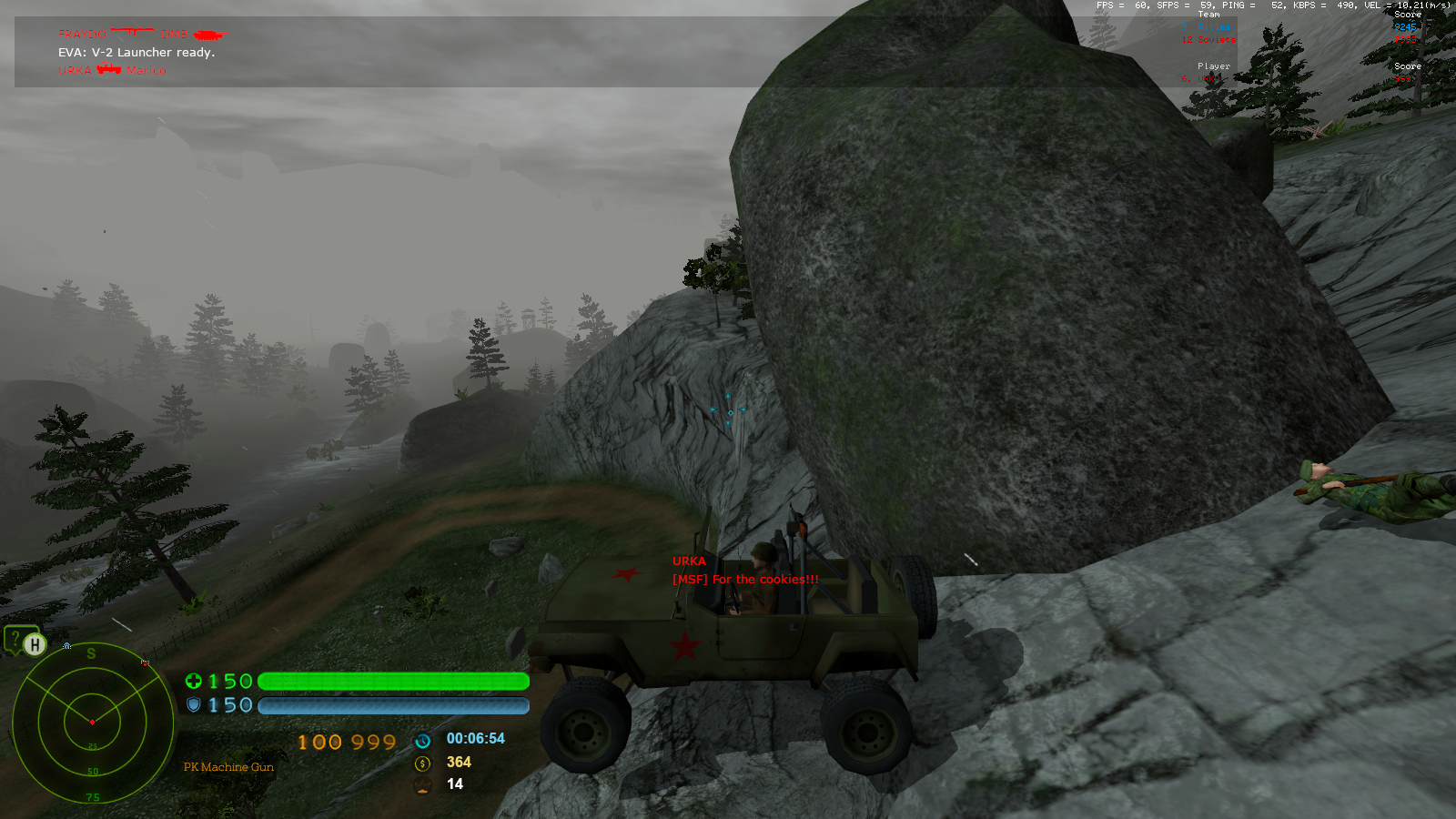
  3. Best way to kill a sniper, is to rush it with your jeep.
  4. Lol somehow i just didn't read all rules, probably was sleepy... EDIT: Probably people is waiting to choose their best screenshots 😄
  5. I have two questions: 1) How many screenshots a single player can submit for the image contest. 2) Where I have to upload my screenshot/s? 😀
  6. I was there ^^ it was funny. Thanks for organizing it.
  7. I forgot to apply for it sorry.

Account

Navigation

Search

Search

Configure browser push notifications

Chrome (Android)
  1. Tap the lock icon next to the address bar.
  2. Tap Permissions → Notifications.
  3. Adjust your preference.
Chrome (Desktop)
  1. Click the padlock icon in the address bar.
  2. Select Site settings.
  3. Find Notifications and adjust your preference.