Custom Textures
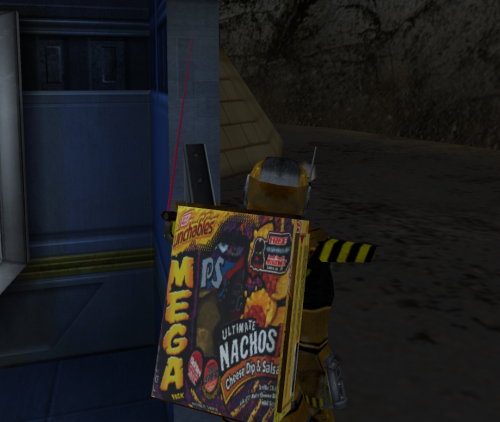
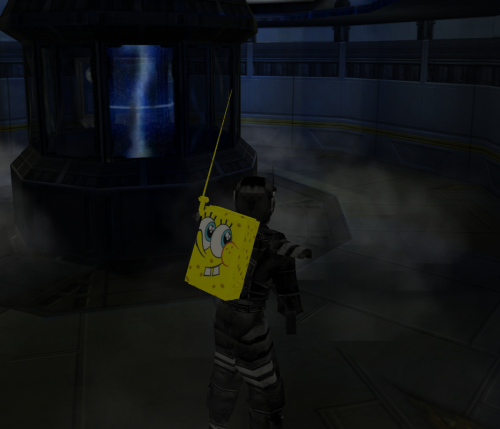
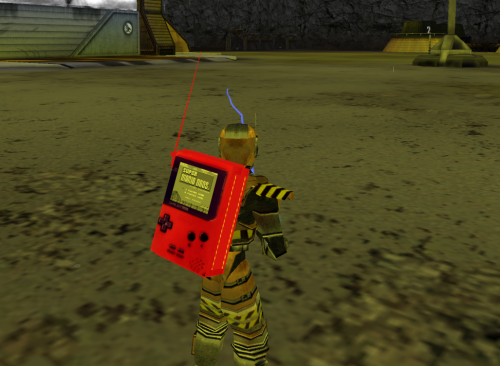
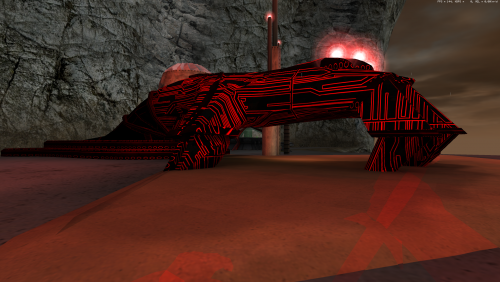
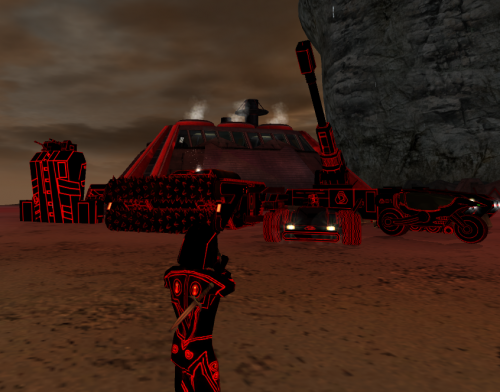
Re-textures, colour mods and other graphical wizardry!
7 files
-
Installation is as simple as dropping the files in the folder listed below.
C:\Program Files (x86)\W3D Hub\games\tsr-release\data
- 347 Downloads
-
Installation is as simple as dropping the files in the folder listed below.
C:\Program Files (x86)\W3D Hub\games\tsr-release\data
- 295 Downloads
-
Installation is as simple as dropping the files in the folder listed below.
C:\Program Files (x86)\W3D Hub\games\tsr-release\data
- 312 Downloads
-
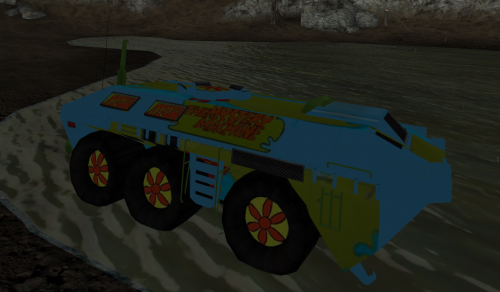
Quick gang, go solve those mysteries!
Installation is as simple as dropping the files in the folder listed below.
C:\Program Files (x86)\W3D Hub\games\tsr-release\data
- 310 Downloads
-
Installation is as simple as dropping the .dds files in the folder listed below.
C:\Program Files (x86)\W3D Hub\games\tsr-release\data
- 321 Downloads
-
Installation is as simple as dropping the files in the folder listed below.
C:\Program Files (x86)\W3D Hub\games\tsr-release\data
- 353 Downloads
-
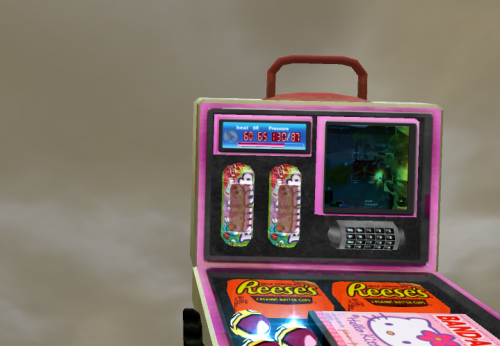
Should allow you to deliver Coors Light, Reeses and Bandages to the battlefield even faster!
Installation is as simple as dropping the files in the folder listed below.
C:\Program Files (x86)\W3D Hub\games\tsr-release\data
- 343 Downloads